
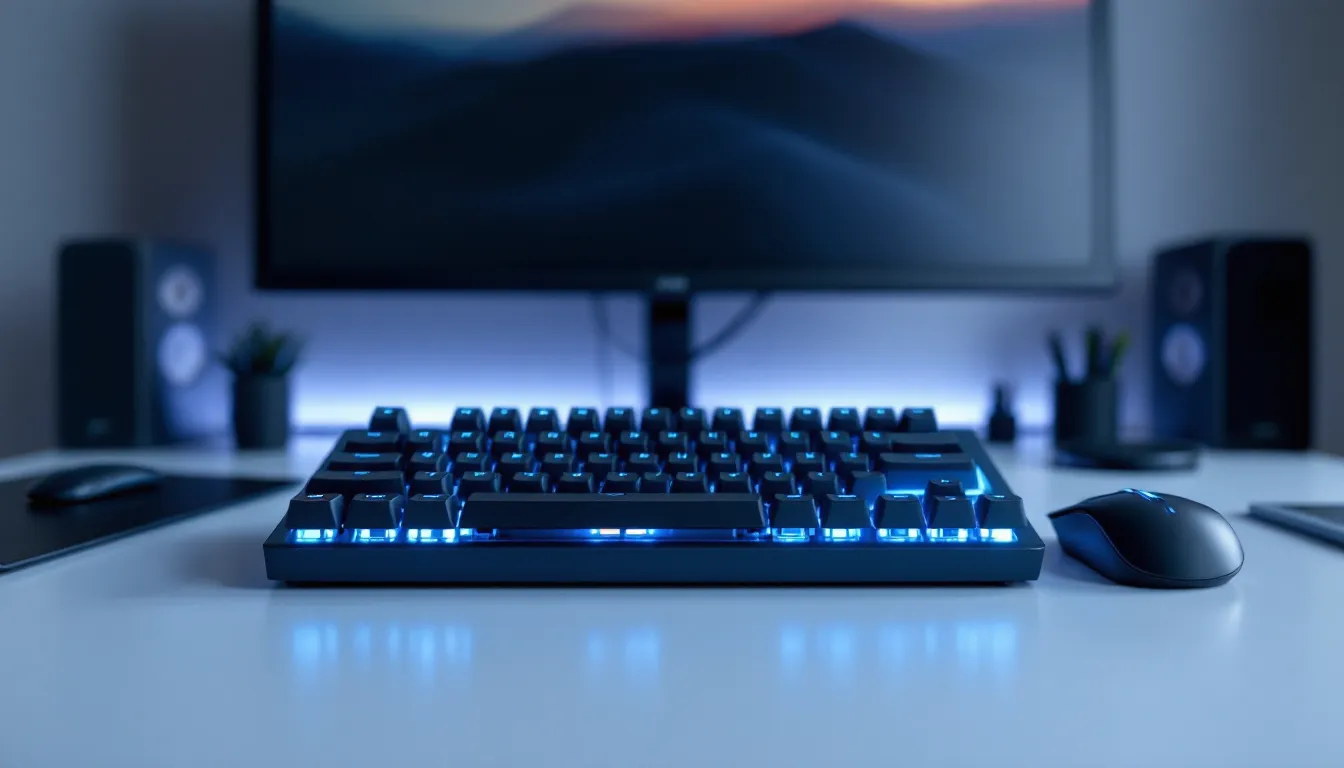

Finding the right gaming keyboard doesn’t require maxing out your budget. A $100 gaming keyboard sits at a sweet spot where you get solid build quality, responsive mechanical switches, and RGB customization without the premium price tag of enthusiast boards. Whether you’re grinding ranked matches, diving into story-driven adventures, or just want a reliable peripheral that’ll last years, there’s never been a better time to invest in this price range. The market’s matured enough that $100 gets you genuine performance improvements, better polling rates, more durable switches, and smarter software, that actually matter in gameplay and comfort. This guide walks you through what to look for, which models deliver real value, and how to avoid common pitfalls so you pick a keyboard that fits your setup and playstyle.
Key Takeaways
- A $100 gaming keyboard offers the optimal balance between mechanical build quality, responsive performance, and value—avoiding the limitations of budget models below $60 and unnecessary premium features above $200.
- Mechanical switches with 1000Hz polling rate and consistent 1-2ms response time are critical for competitive gaming, while polling rates below 125Hz introduce detectable lag in fast-paced titles like Valorant and CS:GO.
- Quality matters in stabilizers, frame materials, and software stability; prioritize Cherry MX or reliable proprietary switches rated for 50-80 million keystrokes over unproven budget alternatives.
- Choose your gaming keyboard based on your actual playstyle—FPS players need linear switches and compact layouts, MMO enthusiasts benefit from programmable keys and full-size boards, and casual gamers should prioritize ergonomics and comfort.
- Test keyboards in-store when possible, read user reviews focused on software stability and noise levels, and verify compatibility with your existing hardware before committing to ensure long-term satisfaction.
Why a $100 Gaming Keyboard Is The Sweet Spot For Performance and Value
The $100 price point hits a crucial balance. Below $60, you’re dealing with membrane keyboards or budget mechanicals with loose switches and inconsistent actuation. Above $200, you’re paying for premium materials, ultra-niche features, and branding that don’t translate to noticeably better gaming experience for most players.
At $100, manufacturers pack in what actually matters: 1000Hz polling rate (or close to it), durable mechanical switches rated for millions of keystrokes, aluminum or reinforced plastic frames, and decent RGB software. You get enough customization to personalize your setup without the bloated feature list that plagues higher-end models.
Competitive gamers notice the difference. A keyboard with consistent 1ms response time versus 8ms adds up during clutch moments, especially in fast-paced shooters or fighting games. Meanwhile, casual players benefit from better ergonomics, programmable macros for MMOs, and switches that won’t feel mushy after three months of use.
The sweet spot also means wider availability. You’re not hunting niche mechanical switch communities or waiting months for pre-orders. Major retailers stock $100 keyboards, you can often try them in-store, and return policies are usually straightforward if it doesn’t feel right.
What Makes A Gaming Keyboard Worth $100
Switch Types and Mechanical vs. Membrane Technology
Mechanical switches are where the money goes. Each key has its own tactile switch underneath, giving you consistent feedback and durability. At $100, you’re looking at well-known switch brands like Cherry MX (German engineering, proven reliability), Outemu (affordable but solid), or proprietary switches from keyboard manufacturers tuned for gaming.
Linear switches (smooth, no bump) dominate competitive gaming because of their speed. Cherry MX Red and Outemu Black clone the Red’s characteristics at lower cost. Tactile switches (they bump when you press them) suit typing and casual gaming, you feel actuation, less chance of accidental presses.
Membrane keyboards use a rubber dome under each key. Cheaper to manufacture, quieter, but the feel degrades faster and response times aren’t as crisp. At $100, you should avoid pure membrane. Some hybrid models exist but aren’t worth the compromise.
Build Quality and Durability Expectations
Frame materials matter for longevity. Aluminum top plates don’t bend under palm pressure during intense play. ABS plastic (common in the $100 range) is fine if it’s reinforced, check reviews for flex.
Stabilizers under spacebar and shift keys should feel solid. Cheap stabilizers rattle and feel mushy. Better keyboards use screw-in stabilizers or pre-stabilized designs.
Switch durability: reputable brands rate their switches for 50-80 million keystrokes. That’s 10-15 years of heavy use. Some budget switches don’t publish specs, that’s a red flag.
RGB Lighting and Customization Features
RGB is standard at $100, but quality varies. You want per-key RGB (each key lights independently) for full customization. Some cheaper boards limit lighting zones.
Software matters more than the lights themselves. Fluid color transitions, macro recording, profile saving, if the software is clunky or requires online accounts, it ruins the experience. Check if the keyboard has offline profiles. Does software update regularly? Are users reporting stability issues? Read reviews focused on software, not just aesthetics.
Top Gaming Keyboard Models In The $100 Price Range
Best Overall: Balanced Performance and Features
When picking an overall winner, balance beats specialization. You need something that excels at gaming but doesn’t sacrifice typing comfort, has solid software, and won’t feel outdated in six months.
The Corsair K60 RGB PRO (around $99-$110 depending on sales) checks these boxes. It uses Cherry MX switches (the Pro version ships with Corsair’s brushed aluminum stabilizers), 8,000Hz hyper-polling option via dongle, per-key RGB, and clean iCUE software. Gamers report consistent response times across all keys with no dead zones. The build quality matches boards costing significantly more, brushed aluminum case, double-shot keycaps.
Alternative at this tier: SteelSeries Apex Pro (often found around $99-$120 on sale). Adjustable actuation switches let you fine-tune how far down each key needs to press before registering. Useful if you want different sensitivity on different keys. 8,000Hz polling, GN-Acta software is intuitive, good macro support.
Best For Competitive Esports: Speed and Precision
Competitive players need zero compromises on response time. You’re looking at 8,000Hz polling minimum, minimal debounce delay, and switches proven in pro settings.
Razer DeathStalker V2 Pro ($99-$110 range) ships with Razer’s proprietary GenG 2.0 mechanical switches, extremely fast actuation (1.6mm), designed specifically for esports. 8,000Hz polling, per-key RGB, strong wireless option (2.4GHz dongle). Razer Synapse software has solid macro support and you can export settings to backup. Used by pro teams in various competitive titles.
For raw speed, SCUF Gaming keyboard and SteelSeries Apex 9 Mini also cater to competitive shooters, smaller form factor reduces mouse travel distance, lower response latency from compact circuitry.
Best For Console Gaming: Wireless and Compatibility
Console players need keyboards that don’t require extensive setup and work across multiple platforms. Wireless is nearly mandatory since controllers typically lack USB passthrough.
Corsair K63 Wireless (hovering around $90-$100) supports both 2.4GHz USB dongle and standard Bluetooth. Compatible with PS5, Xbox Series X
|
S, Nintendo Switch, and PC. Fully mechanical with Cherry MX switches, solid battery life (100+ hours), and responsive enough for console shooters. Keycaps match Corsair’s pro-level standards.
Logitech G915 TKL Wireless (sometimes found near $100 on sale, originally higher-priced) offers the same multi-platform compatibility with Logitech’s solid build quality. Thinner profile, longer battery life, excellent reliability.
Best Budget-Friendly Option: Maximum Value
Not every $100 keyboard is created equal. Some push closer to $80-$90 and pack surprising features.
Redragon K598 (often $60-$80, leaving room in a $100 budget) uses Outemu switches (solid clone of Cherry MX), 3 RGB zones, wired USB, macro support. Keyboard works great for typing and gaming, stabilizers are adequate, software is basic but functional. Build quality exceeds the price, reinforced plastic frame won’t flex.
HyperX Alloy Elite 2 ($90-$100) goes the premium-budget route. Cherry MX switches, aircraft-grade aluminum frame, detachable USB-C cable, per-key RGB. The build feels more expensive than it is, and reviews consistently praise longevity.
Key Features To Look For In Your Search
Polling Rate and Response Time For Competitive Gaming
Polling rate measures how often your keyboard tells your computer it’s been pressed, measured in Hz. 1000Hz (1ms intervals) is the competitive standard. Some newer boards hit 8000Hz, which pros debate whether they can actually perceive the difference (they can in theory, practically it’s minimal on most games).
At $100, aim for 1000Hz minimum. Lower polling rates (125Hz, 250Hz) introduce detectable lag in fast games, your input registers slower on screen. Less critical for casual play, but competitive shooters (CS:GO, Valorant, Apex Legends) benefit immediately.
Response time refers to the delay between physical keypress and the computer registering it. Quality gaming keyboards hit 1-2ms. Cheap ones can reach 5-8ms, which compounds with network latency.
Programmable Keys and Macro Support
Macros let you bind complex commands to single keys, useful in MMOs, strategy games, or fighting games. A $100 keyboard should support at least 10 programmable keys.
Look for keyboards with onboard memory, profiles stored directly on the device. If macros only exist through software, disconnecting the keyboard means losing configurations. Some keyboards let you toggle between profiles via dedicated keys without launching software.
Fighting game players care deeply about macro support. MOBAs (League, Dota 2) benefit from quick ability sequences. Shooters rarely need macros (many competitive shooters ban them anyway).
Ergonomics and Comfort For Extended Gaming Sessions
Flat gaming keyboards cause wrist strain during long sessions. Look for keyboards with adjustable angle feet, usually 2-4 positions. Some have wrist rests included, though quality varies.
Key travel distance (how far the key moves when pressed) affects comfort. Most mechanical switches have 3.5-4mm travel, which feels natural. Anything under 2mm feels cramped.
Tenkeyless (TKL) boards eliminate the number pad, reducing reach distance to the mouse. Popular with competitive players. Full-size boards (with numpad) suit MMO players who benefit from extra programmable keys and those who use numpad regularly.
Wired vs. Wireless: Choosing The Right Connection
Wired keyboards guarantee zero latency concerns. USB connection is direct, no battery management, no interference. Best for competitive gaming and consistent performance.
Wireless boards have improved dramatically. 2.4GHz USB dongle connections are nearly identical to wired (latency negligible on modern boards). Bluetooth wireless is slower, noticeable lag, better suited for casual play.
Wireless wins for setup flexibility, easier cable management, works with multiple devices via Bluetooth, portable. Battery life matters: look for 50+ hours minimum. Some boards let you use them wired while charging.
At $100, if you’re competitive, wired is safer. If you value convenience and cable clutter bothers you, quality wireless is solid now.
How To Choose The Right $100 Gaming Keyboard For Your Setup
Consider Your Gaming Genre and Play Style
FPS/Competitive shooters need linear switches for speed, high polling rate (1000Hz+), and compact layouts (TKL reduces mouse travel). Response time is critical.
MMOs and RPGs benefit from programmable keys, full-size layout with numpad, and tactile switches for intentional keypresses. Response time matters less.
Fighting games demand snappy response, often prefer compact layouts, and macro support for combos. Arcade stick players might not need a keyboard at all.
Typists who also game should prioritize tactile switches and ergonomic design over speed. Mechanical keyboards are more comfortable for extended typing anyway.
If you play multiple genres, pick a balanced board, mechanical, decent polling rate, some programmable keys, no extreme specialization.
Evaluate Your Existing Hardware Compatibility
PC gamers should check software compatibility. Corsair, SteelSeries, Razer, and Logitech all have desktop software, usually available for Windows and macOS.
Console players need to verify compatibility. PS5 accepts most wired and some wireless USB keyboards (not all wireless work reliably). Xbox Series X
|
S is more flexible. Nintendo Switch has limited keyboard support (mostly for chat). Check the manufacturer’s compatibility list before buying.
Mobile gaming is niche but growing. Some wireless keyboards work with Android phones via Bluetooth, though true mobile gaming keyboards are rare at this price point.
Check if RGB software requires online accounts or clouds saves. Some players prefer offline-only setups for security or reliability reasons.
Test Before You Buy: Where To Try Keyboards
Best Buy, Micro Center, and similar retailers often have gaming keyboards on display. Spend 5 minutes typing and pressing keys. Feel switch resistance, check if it feels mushy or responsive. Try rapid keypresses to see if there’s any bouncing.
Check reviews from users with your specific use case. Gaming subreddit communities (r/MechanicalKeyboards, r/GamingPC) have users who post detailed breakdowns with photos and typing tests.
YouTube reviews with audio are helpful, you hear the typing sound, which matters if you’re in a shared space or streaming. Watch unboxing and teardown videos to see build quality and stabilizer construction.
Return policies matter. Amazon, Newegg, and major retailers offer 30-day returns. If the keyboard doesn’t feel right after a week of use, you can send it back.
Common Mistakes To Avoid When Buying A Gaming Keyboard
Overlooking Noise Levels In Shared Spaces
Mechanical keyboards are loud. If you’re streaming, in a dorm, or sharing space with non-gamers, noise is a real consideration.
Linear switches (smooth, no bump) tend to be quieter, with just the bottom-out sound when you press fully. Clicky switches (tactile bump with an audible click, Cherry MX Blue) are the noisiest. Tactile non-clicky switches fall in the middle.
Stabilizers also make noise. Cheap stabilizers rattle and ping with each press, annoying in quiet environments.
Some keyboards add foam or rubber dampening inside the case and switches to reduce sound. Gasket-mounted boards (where switches sit in a rubber frame) feel softer and quieter.
If noise matters, read reviews specifically about sound. Pro reviewers record typing sounds. Test in-store if possible.
Ignoring Software Requirements and Driver Support
A keyboard is only as good as its software if you plan to use macros, custom profiles, or RGB. Some software is bloated, requires internet connection, or slow to update.
Check: Does the software require creating an online account? Can you use the keyboard without software (basic functionality)? How frequently does the manufacturer update drivers?
Some companies abandon software after a few years, leaving users stuck on old versions when Windows or macOS updates break compatibility. Corsair and SteelSeries are reliable here. Smaller brands have spotty track records.
Read user reviews specifically about software stability. “Crashes on startup” or “laggy profile switching” are common complaints that only show up once people own the board.
Chasing Features You Won’t Actually Use
Per-key RGB looks cool. You’ll customize it for about two weeks, then leave it on a preset. Don’t overpay for features you’ll never touch.
Programmable keys are useful if you actually use macros. If you don’t play games that benefit from them, extra macro keys are just wasted premium.
Wireless is convenient but costs $20-$30 more. If you’re never moving your keyboard, wired is fine and guarantees no connectivity issues.
Don’t buy a board expecting future use cases. Buy for what you actually play and do right now. If specs impress you but you can’t articulate why you need them, skip it.
Maximizing Your $100 Gaming Keyboard Investment
Maintenance Tips For Longevity
Mechanical keyboards last years with minimal care. Dust accumulates under keycaps, use a keycap puller (included with most boards) and gently remove caps every few months. Compressed air blows dust from switches. Don’t use vacuum cleaners: static risk is real.
If sticky keys develop, try compressed air first. If that fails, some switches are removable (hot-swap keyboards let you pull switches without soldering). You can replace a single bad switch instead of scrapping the whole board.
Keep liquids away. Spill prevention is obvious, but even moisture from humid environments can corrode contacts over time. Silica gel packs near your keyboard help in very humid climates.
Cable management prevents strain on USB connectors. Don’t wrap cables too tight, use velcro straps and avoid kinks.
Customization And Software Optimization
Most keyboards ship with default profiles that aren’t optimized for your setup. Spend time in software: adjust RGB to reduce eye strain (many gamers prefer dimmer, cooler colors), customize macro bindings for games you actually play, and save multiple profiles for different games.
Pro players often disable RGB entirely or set it to a single color, less visual distraction. Experiment to find what helps your focus.
Macro optimization takes thinking. In a MOBA, don’t bind complex 5-key combos to a single key (some games penalize or ban this). Instead, use macros for repetitive, non-gameplay-intensive tasks like quick inventory management.
Update firmware regularly when the manufacturer releases patches. Updates often improve polling rate stability, switch responsiveness, or software compatibility.
Warranty and Support Considerations
Manufacturer warranty usually covers 1-2 years for mechanical failure. Read the fine print, accidental damage and liquid damage often aren’t covered.
Check if the company has responsive customer support. Corsair and SteelSeries respond within 24 hours on official channels. Smaller brands can be slow or unhelpful.
Keycap replacement availability matters long-term. Standard Cherry MX switches have tons of aftermarket keycaps available if you want to customize later. Proprietary switches limit your options.
Some retailers offer extended warranties for $10-$20. If the board will be heavily used (streaming, tournament play), it might be worth it.
Conclusion
A $100 gaming keyboard is a genuine upgrade from cheap peripherals, and it’s the price point where you stop making compromises. You get mechanical switches that last, response times that matter in competitive play, and software that works without constant frustration.
The key is matching the board to your actual playstyle, not chasing every feature or the loudest brand name. A competitive FPS player has different needs than an MMO enthusiast, and that’s fine, both get solid value at this price point across different products.
Before buying, think about what you actually need: wireless or wired, compact or full-size, linear or tactile, how much you care about RGB, whether macros matter. Then read reviews from people with similar setups. Most $100 keyboards are reliable now, so the difference often comes down to feel and fit.
Invest time in testing if possible, trust credible reviews more than marketing, and remember that a quality keyboard will last 5-10 years of active use. That’s better value than most gaming peripherals, and honestly, better value than most gaming gear period.